
Use Your Android Phone as a Mac Trackpad and Keyboard
Written by the people who make Peering. Checked against the app's own code, November 2026.
Two ways to use it
As a remote, with the Mac's screen in view. The Mac is plugged into a TV or a projector and you are on the sofa. Turn the picture down to save battery and use the phone as a touchpad and keyboard. Pause a film, type a search, scroll a page.
As a remote desktop, with the screen on the phone. The Mac is in another room or another city. The phone shows its screen and the same gestures drive it, so you do not have to hit tiny targets with a fingertip.
The gestures
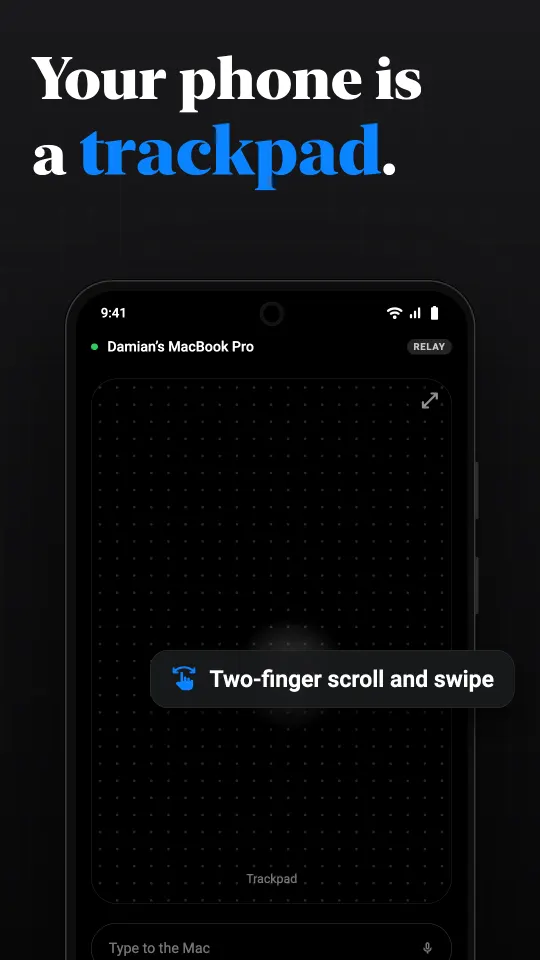
- One finger moves the pointer, relative, like a laptop trackpad.
- Tap to click; two-finger tap for a right click.
- Two fingers scroll, and swipe sideways to move between desktops.
- Tap and drag to select text or move a window.
- Prefer something else? Direct touch taps exactly what you see, and a joystick with a scroll wheel suits one-handed use.
A keyboard with the Mac's keys
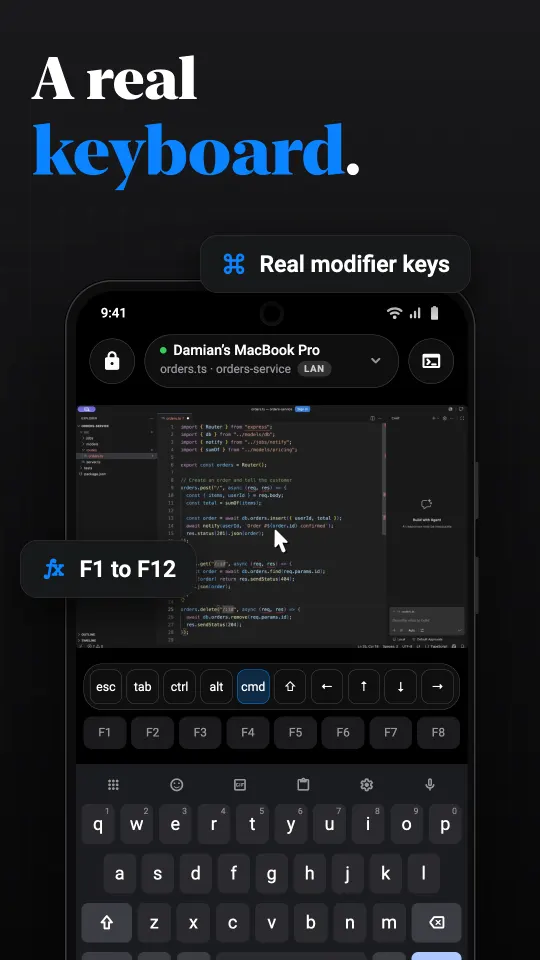
Android's keyboard has no Command, Option or Escape. Peering's keyboard bar adds them, with Control, Tab, arrows and F1 to F12, the media and brightness keys among them. Modifiers stay latched until the next key, so Command, Shift, 4 is three taps. Each app on the Mac gets its own set of shortcuts, and you can save macros for the combinations you use most.
There are two typing modes. Text mode sends what you type as text, so autocorrect, emoji and other alphabets work. Key mode sends key presses, for games and apps that listen for keys. When the Mac focuses a text field the keyboard can open by itself and mirror the field. And dictation types what you say, with a live waveform and transcript.
How it compares with a Bluetooth trackpad app
Some apps pretend to be a Bluetooth mouse. They need no Mac software, but they only work in Bluetooth range, cannot show you the screen, and usually cannot send Mac shortcuts properly. Peering needs its Mac app installed and permissions granted, and in return it works over Wi-Fi or the internet, shows the screen when you want it, and sends real Mac key combinations.
Setting it up
Install Peering for Mac (macOS 15 or later) and allow Accessibility, which is what lets an app move the pointer and type, and Screen Recording. Install Peering on the phone from Google Play when it is listed, pair once with the six-digit code, and pick Trackpad in the session's input menu.
What it costs
Free on your own network with no time limit, plus 30 minutes a day of relay time for reaching the computer from another network. Pro ($2.99 a month) or Lifetime ($24.99 once) removes the daily limit. Those are the US prices; Google Play shows yours in local currency.
Questions
Can I use my Android phone as a trackpad for my Mac?
Yes. Peering's trackpad mode turns the phone into a touchpad: one finger moves the pointer, tap clicks, two fingers scroll and swipe between desktops.
Does it need Bluetooth?
No. It works over Wi-Fi at home and over the internet from elsewhere, which means it needs the Peering app running on the Mac.
Can I type Mac shortcuts like Command-Tab?
Yes. The keyboard bar has Command, Option, Control, Escape, Tab and F1 to F12, with modifiers that stay latched for the next key.
Does it work with the Mac connected to a TV?
Yes. Use trackpad mode while you watch the TV, and turn the picture on the phone down or off.