
Control Your Mac from an Android Phone
Written by the people who make Peering. Checked against the app's own code, November 2026.
Why this is awkward without an app built for it
Apple's own Screen Sharing only talks to other Apple devices, so an Android phone has no built-in way in. The usual workarounds are a VNC client pointed at the Mac's Screen Sharing server, which works on your own network but leaves you to solve reaching it from outside, or a general remote support tool that wants an account and was designed for helping someone else's computer. Peering was written for one job: you, your phone, and your own Mac.
What you can do from the phone
- See the screen as hardware-decoded H.264 or HEVC video, with pinch to zoom, Fit or Fill, and Automatic, Low, Medium or High quality.
- Move the pointer three ways: trackpad mode, where the phone is a touchpad; direct touch, where you tap what you see; or a joystick for small screens. There is also an observe-only mode.
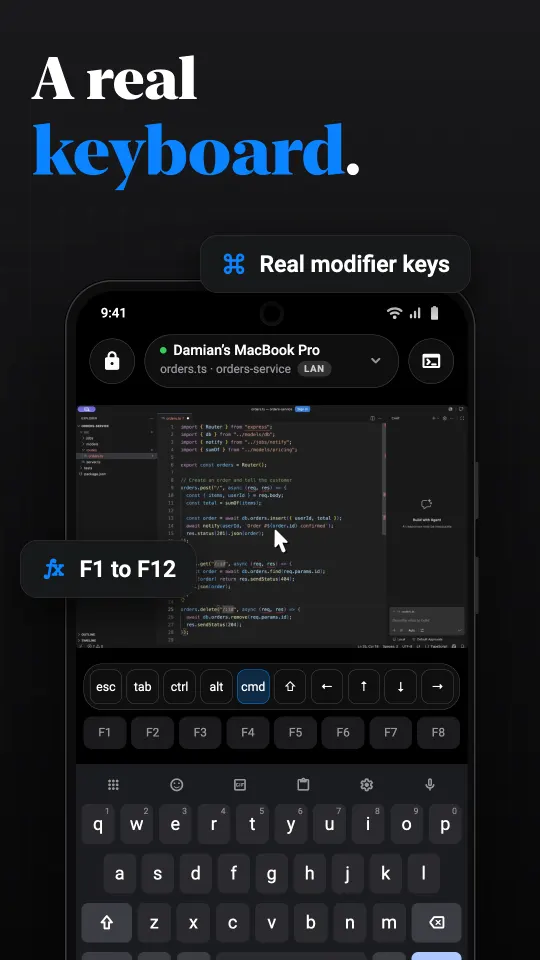
- Type with a keyboard bar that adds the keys Android lacks: Command, Option, Control, Escape, Tab, arrows and F1 to F12, with sticky modifiers and per-app shortcut sets. Dictation types what you say.
- Hear the Mac, with the sound switch in the session panel.
- Move text and images through the clipboard, in either direction, only when you ask.
- Pick what you look at: one display, one app, one window, or a desktop.
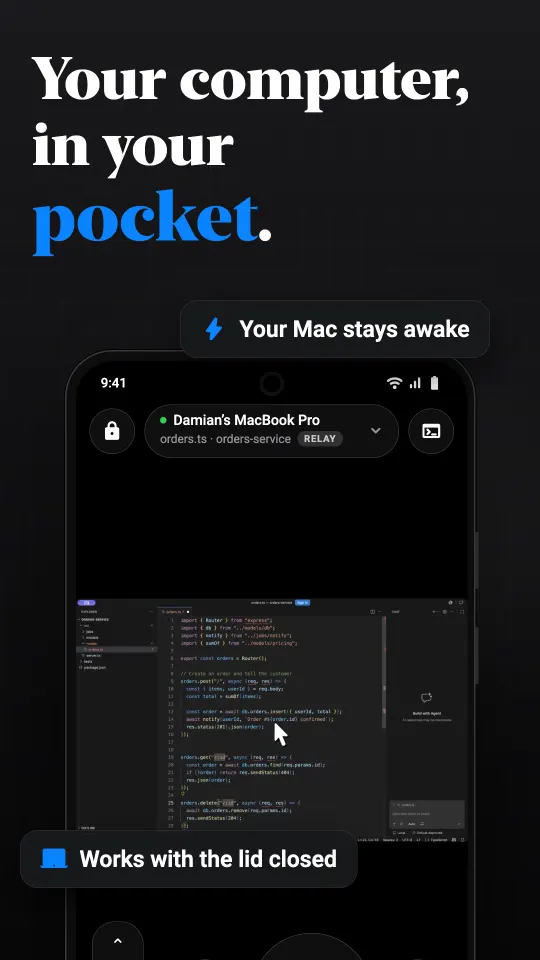
- Open a terminal on the Mac, browse and transfer files, and run coding agents with a proper chat view.
- Darken the Mac's own screens while you work, or lock the Mac when you leave.
Setting it up
1. On the Mac. Download Peering for Mac. It needs macOS 15 (Sequoia) or later, Apple silicon or Intel. On first launch it asks for Screen Recording, which lets it capture the screen, and Accessibility, which lets it move the pointer and type. Both are Apple's permissions and both are required.
2. On the phone. Install Peering from Google Play when it lands there. Any Android phone or tablet on Android 10 or later will do.
3. Pair once. On the same Wi-Fi, the Mac appears under Nearby. Tap it, and the Mac shows six digits; type them on the phone and continue only if they match. You can also scan the QR code the Mac shows, or pair from another network by pasting the Mac's device ID. After that the two recognise each other for good.
4. Connect. Tap the Mac. The session bar says how you are connected: LAN at home, DIRECT when the two devices found a path straight to each other across the internet, or RELAY when they could not and Peering's relay carries the session.
From outside your home network
You do not need port forwarding, a VPN or a static address. When the phone is away, Peering first tries to open a direct path between the two devices. On networks that block that, a relay forwards the connection. It holds no key for it: the picture, keystrokes and clipboard are encrypted between your phone and your Mac, and the relay can read none of them. When you come back into range of the Mac, a relayed session moves to your own network on its own.
The Mac does have to be awake. See keeping a Mac reachable while you are away for the switches that help, including working with the lid closed. A sleeping Mac on the same network can be woken from the phone with Wake on LAN.
Private by default
There is no account. Each device makes its own key and keeps it in its own secure storage, and after pairing each refuses to talk to anything else claiming to be the other. The Android app can be locked behind your fingerprint, face or passcode, and it blocks Android's screenshots and recent-apps thumbnails of the Mac's screen. The app has no analytics and no advertising.
What it costs
Free on your own network with no time limit, plus 30 minutes a day of relay time for reaching the computer from another network. Pro ($2.99 a month) or Lifetime ($24.99 once) removes the daily limit. Those are the US prices; Google Play shows yours in local currency.
What it does not do
One session runs at a time on Android; opening a second computer ends the first. The relay needs the Mac awake. And Peering does not reach Linux machines or other people's computers: it is for computers you own and have paired. A Windows host exists, but it is an early beta.
Questions
Can I control my Mac from an Android phone?
Yes. Install Peering on the Mac and on the phone, pair them once with a six-digit code, and the phone shows the Mac's screen and controls its pointer and keyboard, at home or from another network.
Do I need an account or a Google sign-in?
No. Neither the Mac nor the phone has an account. Each device makes its own key and the two trust each other after you confirm the pairing code.
Is Peering for Android on Google Play?
It is coming soon to Google Play. The Mac app and the iPhone app are available now.
Which Android versions are supported?
Android 10 or later, on phones and tablets.
Does it work when I am not at home?
Yes. Peering tries a direct path between the devices first and falls back to a relay that cannot read the session. Free includes 30 minutes of relay time a day; Pro or Lifetime removes the limit.
Can Microsoft Remote Desktop control a Mac from Android?
No. Microsoft's Remote Desktop app speaks RDP, and macOS has no RDP server. To control a Mac from Android you need an app with its own Mac host, such as Peering.
Is there a free way to remote into a Mac from Android?
Peering is free on your own network with no time limit, and includes 30 minutes a day from other networks. Chrome Remote Desktop is also free but needs a Google account.
Can I hear the Mac's sound on the phone?
Yes. Turn on the Mac's sound in the session panel.